Import skills from GitHub
Bring existing SKILL.md skills from a public GitHub repo into a SkillHub registry you own, with verifiable provenance.
Plenty of good skills already live in public GitHub repos. Importing brings one into a registry you own — so it gets scanned, versioned, and installed like any first-party skill — while keeping a verifiable link back to where it came from: the repository, ref, subpath, and the exact upstream content hash at the moment you copied it.
Importing is deliberately different from a direct external install. A direct
install (skillhub install gh:owner/repo#skill) tracks the upstream source in
your lockfile and keeps its upstream identity. An import copies the skill
into your registry as a fresh published version and records its provenance, so
the copy is yours to govern but always traceable back upstream. This guide walks
the import flow both ways — first in the dashboard, then from skillhub — and
shows where the recorded provenance lands.
Whichever path you take, the copy goes through the same publish pipeline — validate, then a blocking security scan — before anything lands. A blocking finding stops the import and nothing is written to the registry. Importing untrusted code is never a way around the scan gate.
What you need first
A registry you can publish to (you're an owner or maintainer). Importing creates a new published version, so it needs publish rights on the target. See registries if you don't have one yet.
The source ref for what you want to import. For a GitHub repo that's
gh:owner/repo, optionally narrowed to a branch, tag, or commit with
@ref and to a single skill with #skill-name — the full grammar is in
refs & scopes.
To be signed in. In the dashboard that's your session; from the CLI, run
skillhub login first so the import can authenticate against the target
registry.
Import a skill
The dashboard importer previews a repo's skills before you commit to anything, so you can see exactly what will be copied.
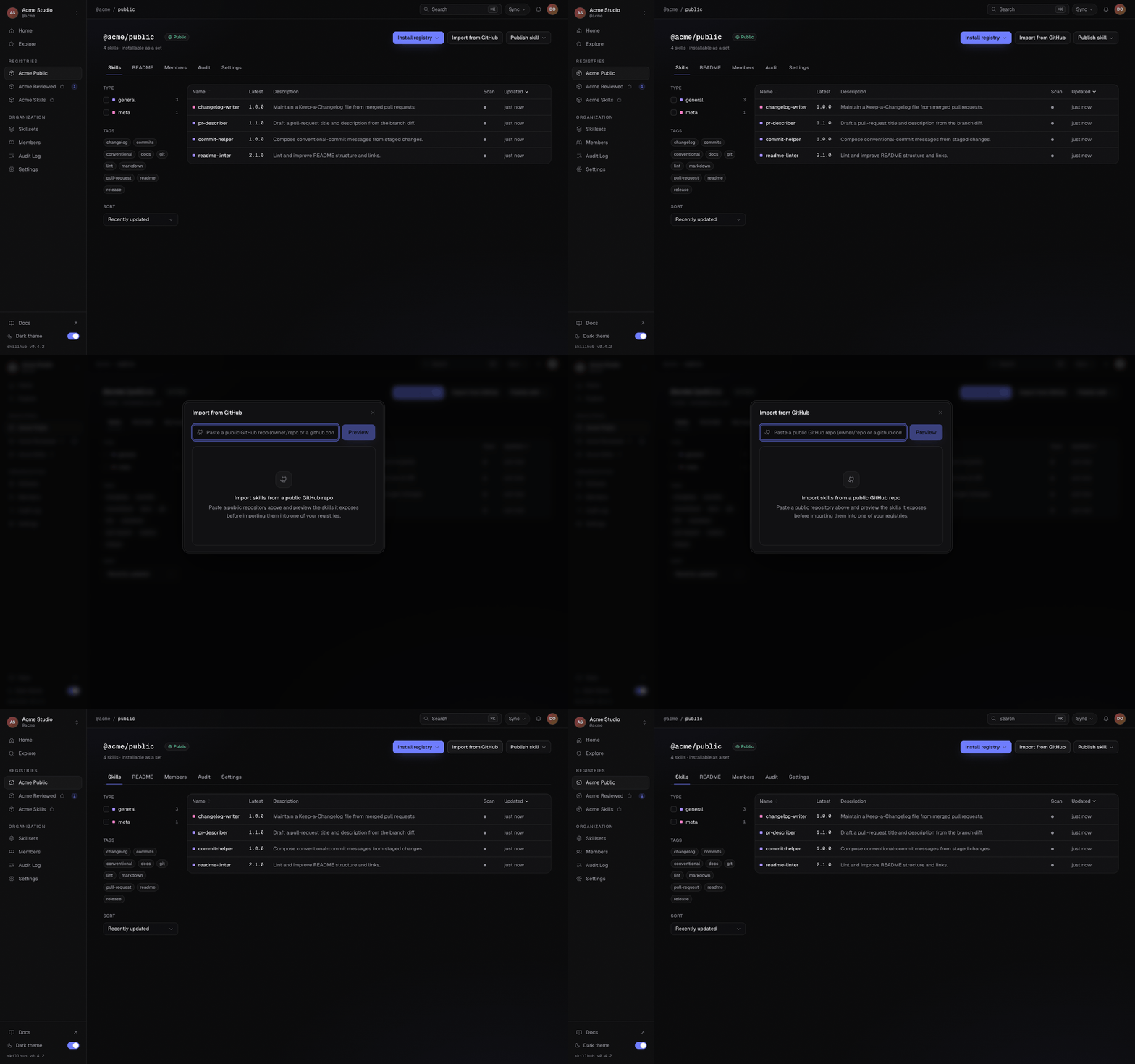
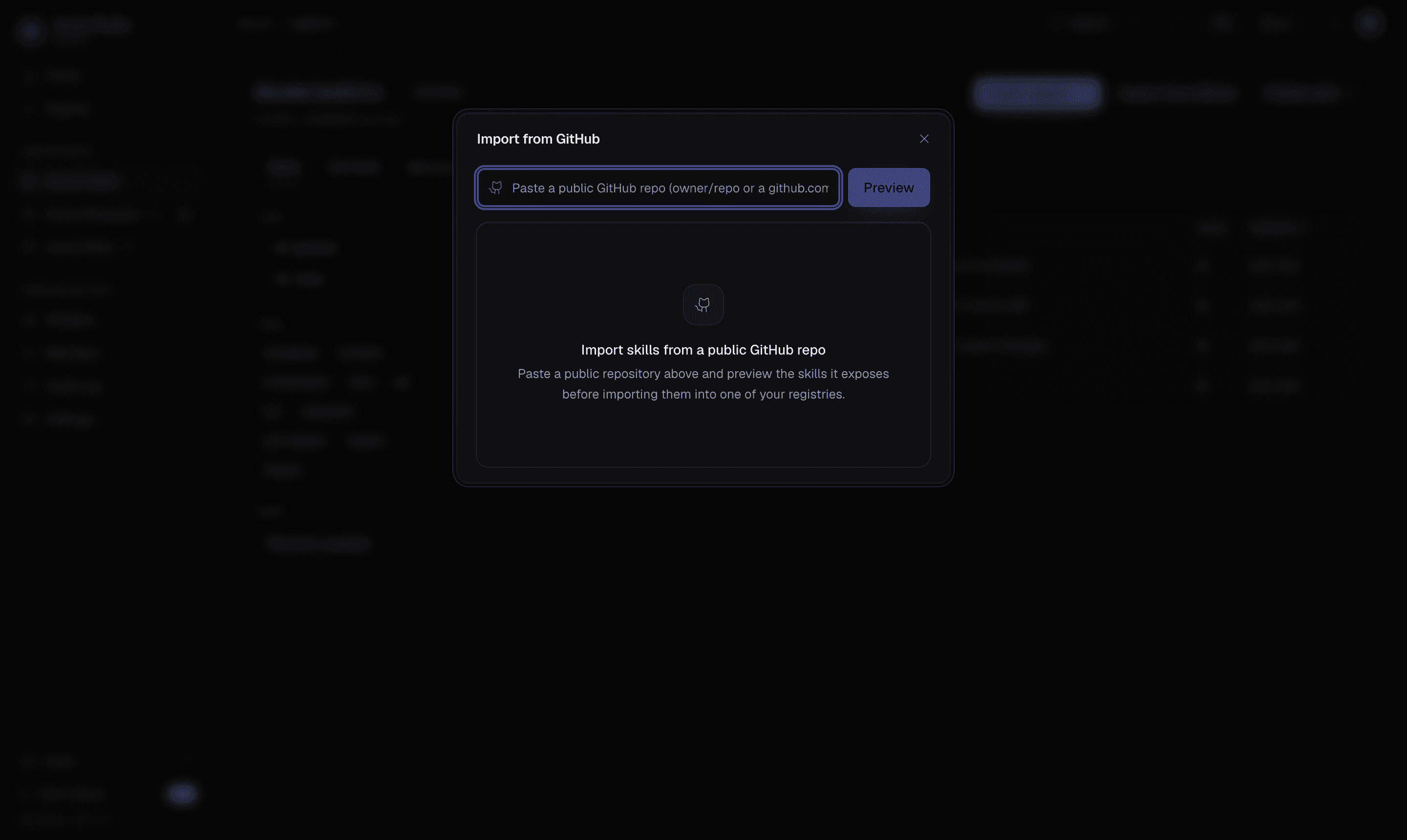
Open the Import from GitHub dialog. From a registry you own, start an
import and paste the repository. The importer resolves the repo and lists
every SKILL.md it finds, with each skill's name and subpath — a preview,
not a copy, so it's safe to look before you leap.
Pick which skills to import and choose the target registry. A repo that exposes one skill is unambiguous; a monorepo with several lets you select the ones you want. Confirm the registry the copies should land in.
Run the import. Each selected skill is validated and scanned, then published into your registry as a new version with its provenance recorded. The gate is per skill: one that a scan blocks is not written, while the clean ones in the same batch still land, and the result names which was which — so a single flagged skill costs you that skill, not the repository.
skillhub import takes an external source and a --to target registry. It
previews the source, copies the selected skill(s) through the publish pipeline,
and prints the recorded provenance.
Import a single-skill repo straight into a registry you own:
skillhub import gh:owner/repo --to @studio/generalNarrow to a branch, tag, or commit with @ref, and to one skill in a monorepo
with #skill-name:
skillhub import gh:owner/repo@main#changelog --to @studio/generalIf the repo exposes several skills and you don't name one, the CLI shows an
interactive picker. In a script (or with --json, where no prompt is possible),
an ambiguous source instead exits non-zero and lists the candidates so you
can re-run with an explicit choice. Select skills non-interactively with
--skill, which is repeatable:
skillhub import gh:owner/repo --to @studio/general --skill changelog --skill release-notesOn success the CLI echoes the J6 result — how many skills were copied, into which registry, and that the scan passed:
✓ imported 1 skill into @studio/general with provenance (source URL + upstream hash recorded); scan passed
  @studio/general/changelog@1.0.0  https://github.com/owner/repo
A multi-skill batch can land partially: skills the scan blocks come back in
failed[] (with code: "scan-blocked") while the clean ones import, and the run
is still a success. Only a batch where nothing landed exits non-zero. If the
server refuses the batch over benign structural warnings — a size-shape or
content-length limit — the CLI prompts you to acknowledge them; pass
--allow-warnings (or --yes) to acknowledge them up front in a script.
The import needs a target: pass --to @owner/registry. And import only
accepts external sources — a gh: GitHub ref or an sh: skills.sh slug.
Pointing it at a registry ref is a usage error; use skillhub publish for a
local skill instead.
The same command imports from the skills.sh public index by swapping the source
ref for an sh: slug — everything else about the flow is identical:
skillhub import sh:vercel-labs/agent-skills/changelog --to @studio/generalSee the recorded provenance
Once a skill is imported, its origin travels with it everywhere the skill appears. On the skill's page a source pill marks it as imported from GitHub, right next to the name:
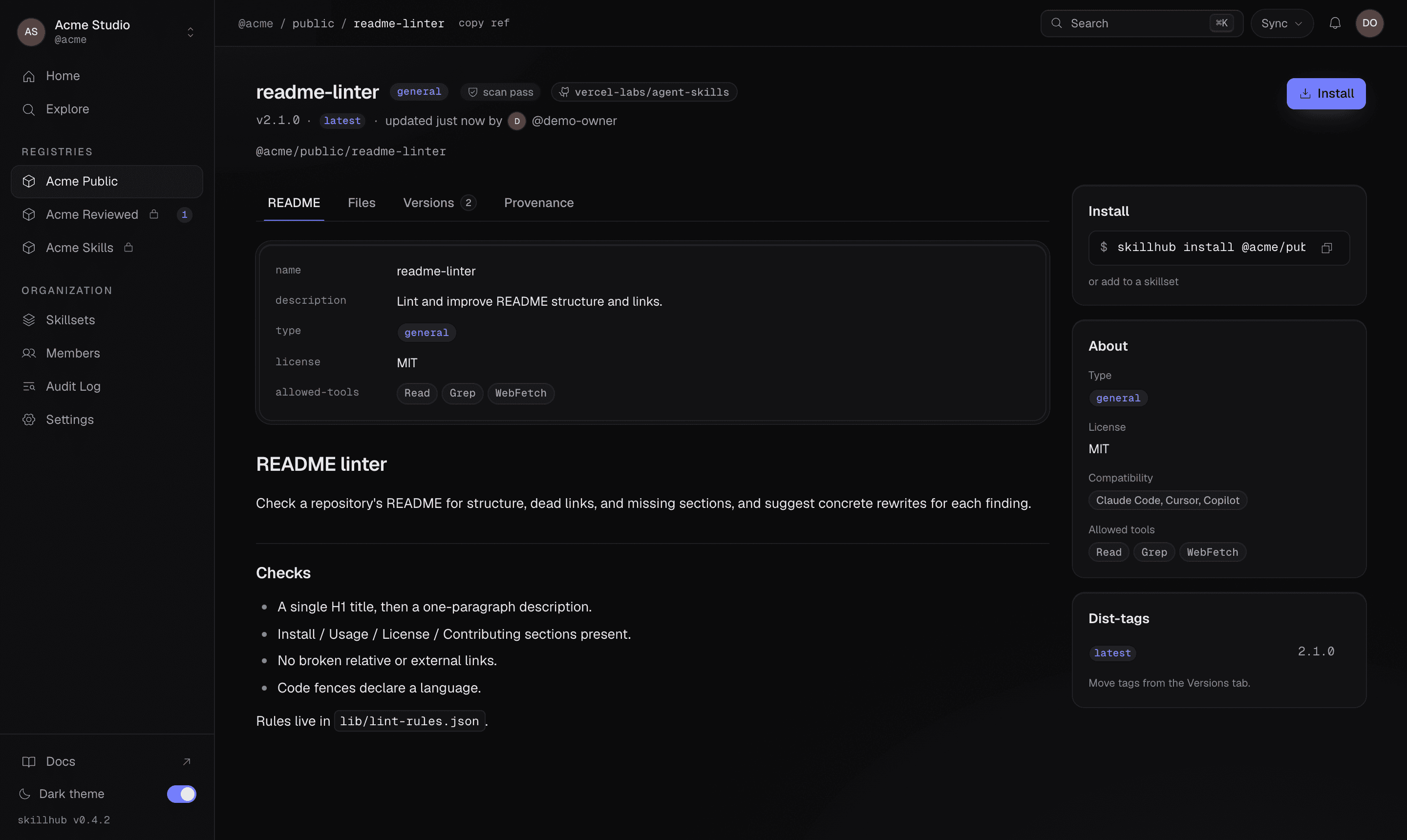
The full record lives on the Provenance tab: the source repository, the ref it was taken from, the subpath within the repo, and the upstream content hash captured at import time.
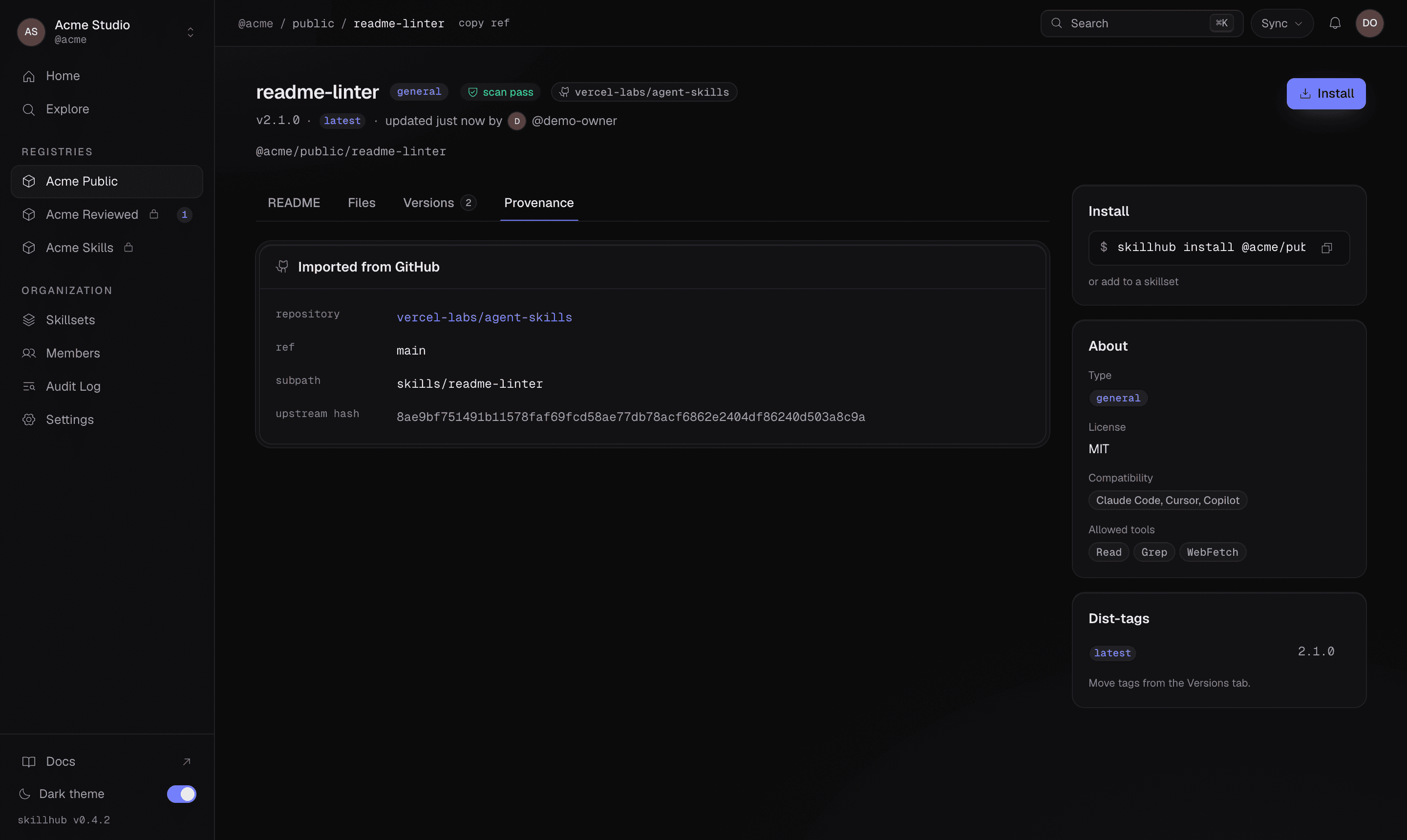
Provenance is recorded server-side by the import itself — it isn't a label you type, so it can't drift from reality. The upstream hash is what makes the link verifiable: it pins the copy to the exact upstream content it was made from, which is also what lets a later drift check tell whether the source has moved on since.
Check whether upstream has changed
Because the import pins an upstream hash, you can later ask whether the source
has changed since you copied it. Add --check-drift and the CLI re-resolves the
source right after importing and compares the hash it reports now against the one
just recorded:
skillhub import gh:owner/repo#changelog --to @studio/general --check-driftIf the hashes differ, you get an upstream changed warning naming both hashes. Drift is a signal, never a hard failure — the copy already in your registry is still valid and installable; you decide whether to re-import to pull the newer upstream content in as a fresh version.
What lands in your registry
An imported skill is a normal published version. It carries the recorded
provenance, but otherwise you version it, tag it, install it, and (on a
review-required registry) gate it exactly like a skill you authored. The one
thing that stays with it is the traceable link upstream — which is the whole
point of importing rather than copy-pasting a SKILL.md by hand.
import command reference
Every flag, the source-ref grammar, and the full --json payload for import.
Refs & scopes
The gh:/sh: source-ref grammar, version qualifiers, and how external refs differ from registry refs.
Security scanning
The blocking scan every import (and publish) passes through before anything lands.
Browse and compare versions
Inspect the imported skill's versions and files, and diff it against later imports.
Install and sync a registry
Install a SkillHub registry (or one skill) into a project, keep git status clean, and sync a teammate's publish.
Review changes before they ship
How a review-required SkillHub registry holds a version's dist-tags until a reviewer approves — reviewing the SKILL.md diff like code.