Browse and compare versions
Explore a SkillHub skill's version timeline, inspect its files, and compare any two published versions.
Every publish adds an immutable, content-hashed version to a skill's linear
history — and every one of them stays browsable forever. This guide reads that
history from both sides: the dashboard, where a skill's Versions and Files
tabs give you a timeline, the real file body of any release, and a red/green diff
between two of them; and the CLI, where skillhub outdated, skillhub list,
and skillhub update let you see where your installs sit and move them between
versions on purpose.
If you want the model first, read Skills & versions and Versions & dist-tags; this page is the hands-on tour.
Two rules make this whole flow predictable. A version is immutable — the
bytes behind @studio/design-systems/tokens-workflow@1.2.0 are frozen forever,
so a diff between two versions is a diff between two facts, not two renders. A
dist-tag is movable — latest, beta, and friends are just pointers you
slide onto a version. And by policy, latest never points at a prerelease:
a release-only tag can only land on a released version.
Find the skill in the dashboard
A skill's page is organized into tabs — README, Versions, Files, and (for imported skills) Provenance. The Versions and Files tabs are where its history lives.
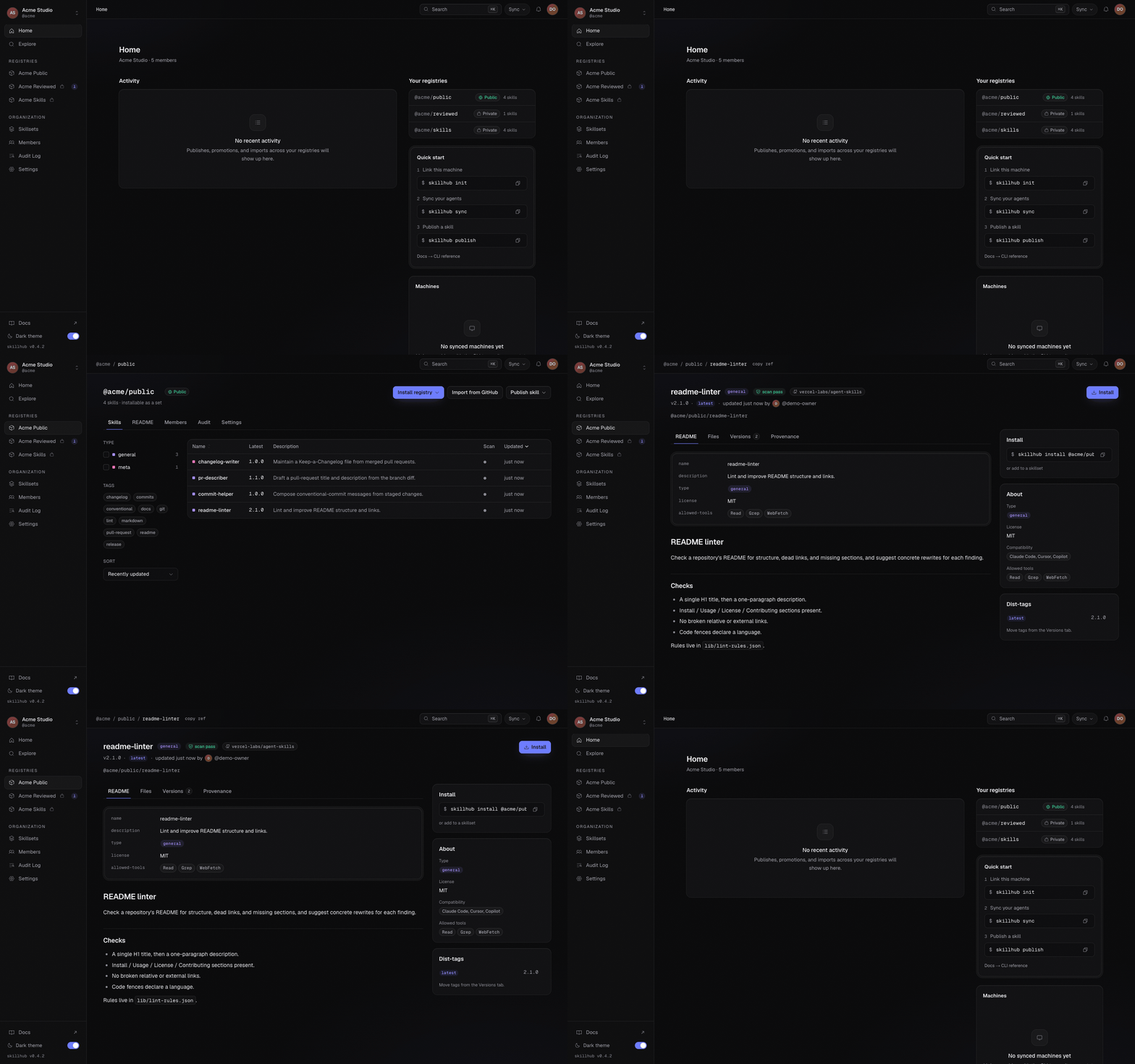
You can jump straight to a skill's page from the terminal instead of clicking in
— skillhub open takes an @owner/registry/skill ref (append @version to open
an exact release):
skillhub open @studio/design-systems/tokens-workflowRead the version timeline
Open the Versions tab
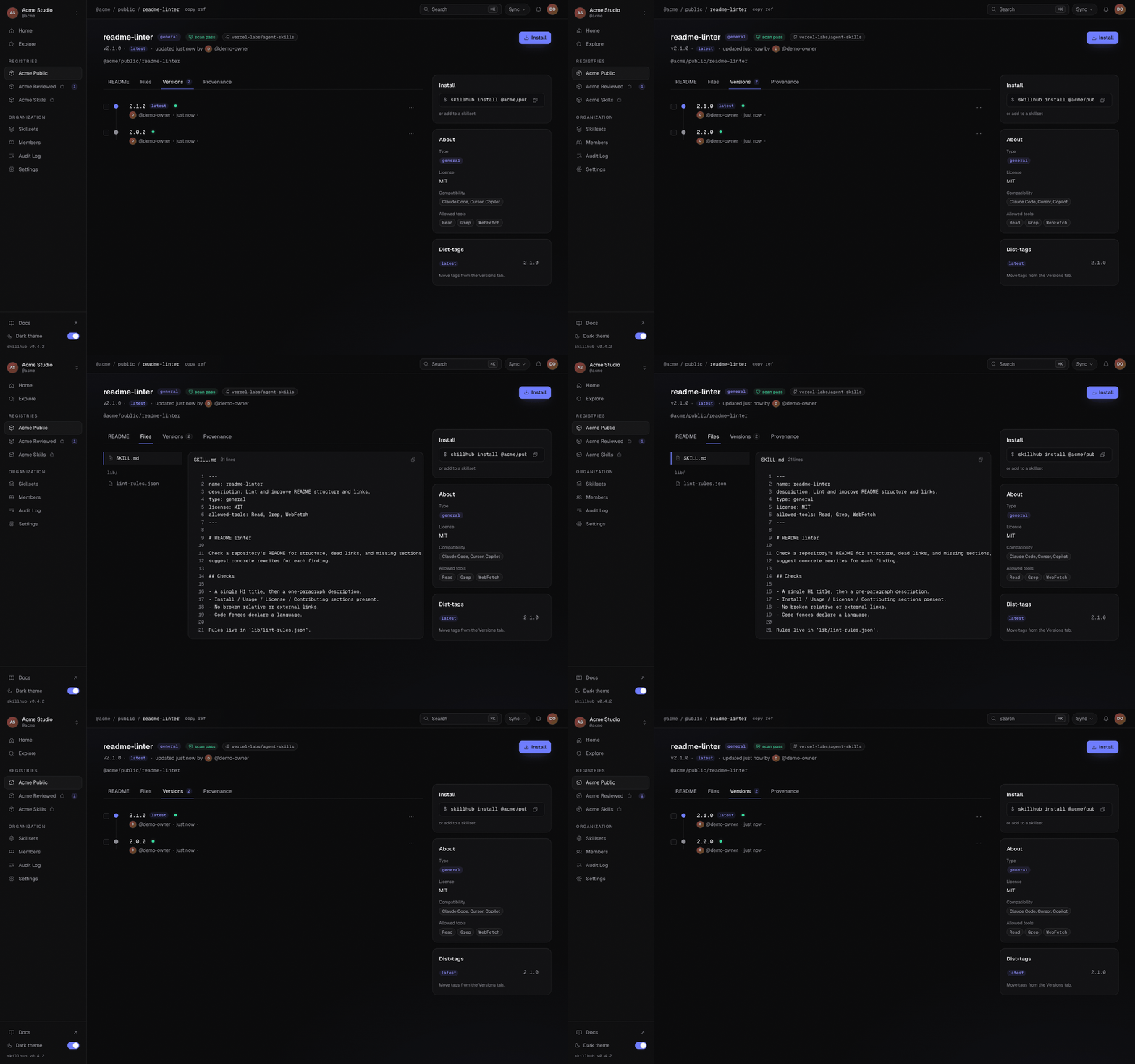
The Versions tab is the skill's timeline: every published version in linear order, newest first, each row showing its semver, when it landed, and — crucially — which dist-tags currently point at it. History here is a simple ordered sequence; there are no branches or merges.
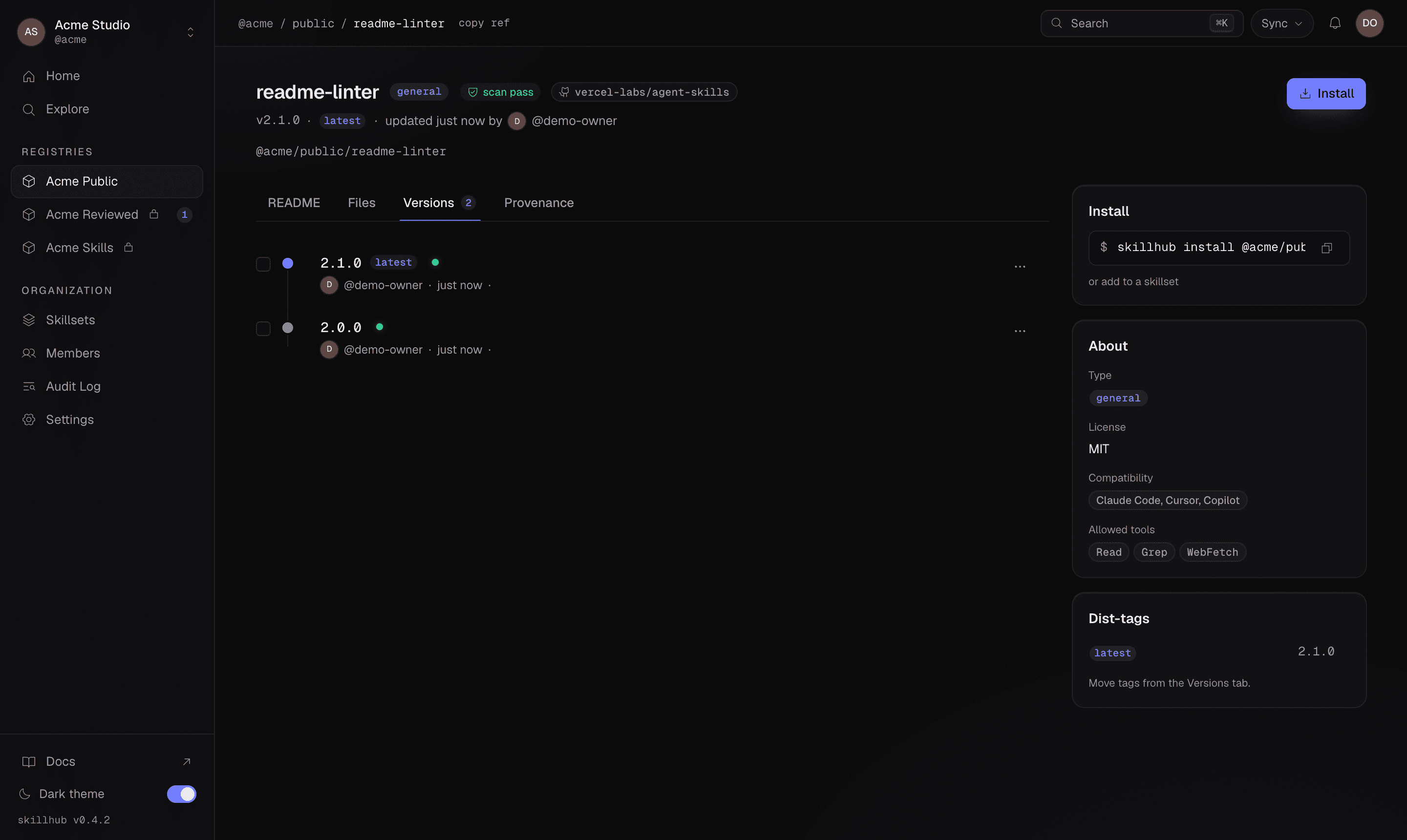
Watch the Versions and Files tabs together — the timeline lists the releases, and selecting one drives what the Files tab shows:
Read the dist-tags
The tag pinned to each row tells you what an install actually resolves. latest
is the default release channel; a prerelease tag like beta names an opt-in
channel. Because a version is immutable but a tag is not, the same version can
gain or lose tags over time without its bytes ever changing — a promotion is
just a tag sliding onto a newer release.
A dist-tag move is enforced server-side: release-only tags never point at a
prerelease, so latest can't be parked on a -beta/-rc version. On a
review-required registry, landing the release tag also needs an admin approval —
see Review changes before they ship.
Inspect a version's files
Pick a version from the timeline and open the Files tab to read what actually shipped in it — not a re-render, but the real file body captured in that content-hashed snapshot. This is the same content the registry hashed at publish, so what you're reading is exactly what an install of that version would extract.
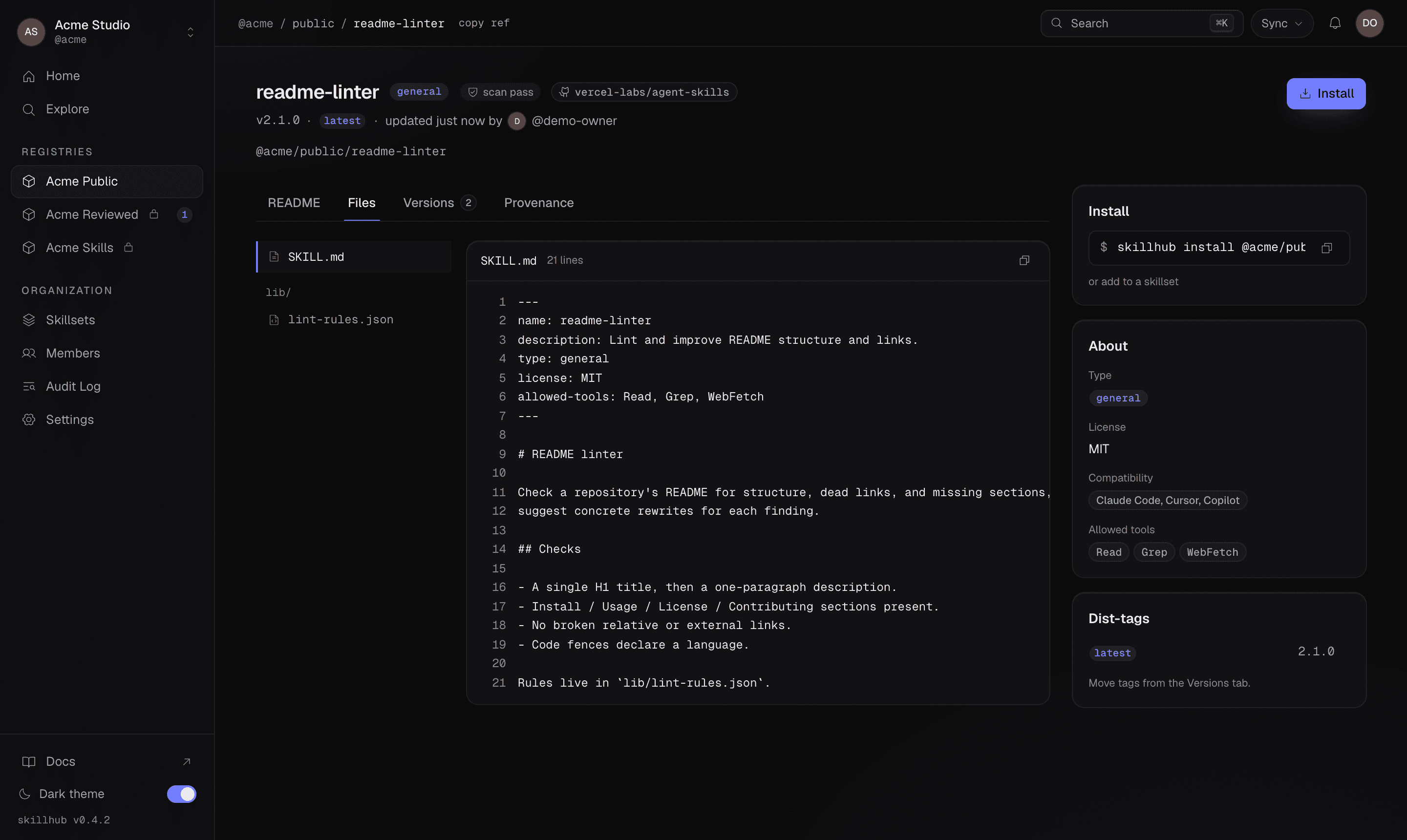
Because each version is its own frozen snapshot, switching the selected version
switches the files with it — you can read SKILL.md (or any script or reference)
as it existed at 1.0.0 and again at 1.2.0 without leaving the page.
Compare two versions
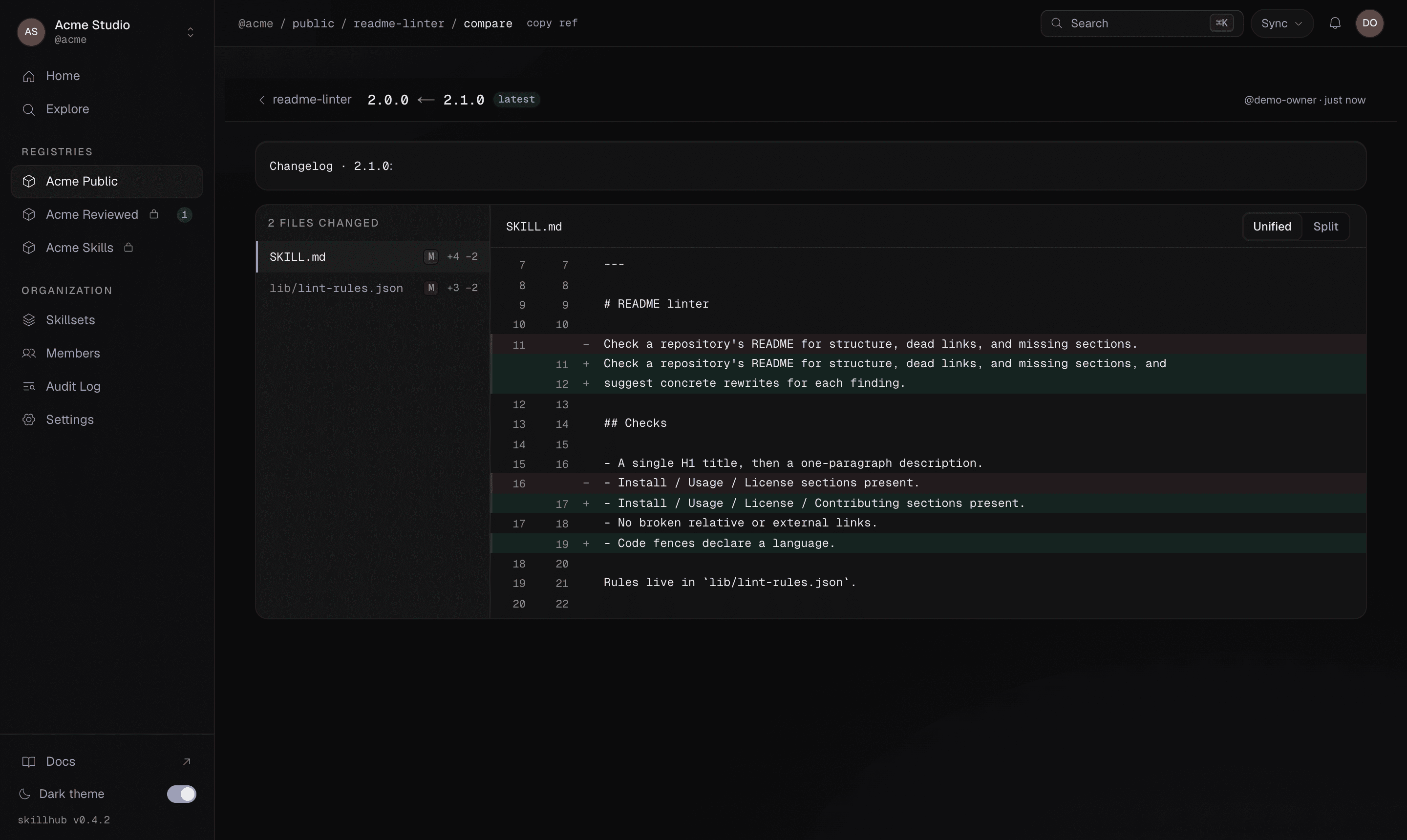
The Versions and Files tabs tell you what a release contains; the compare view tells you what changed between two of them. Because both sides are stored snapshots, the registry computes a real red/green diff — reviewing a skill update reads exactly like a code review.
The diff has two layouts, and you can toggle between them live:
Unified stacks the change inline — removals above additions in one column. It's quickest for a short edit where you just want to read the old lines against the new:
Split puts the two versions side by side — the older on the left, the newer on the right — which is easier to scan for a larger rewrite where you want both columns at once:
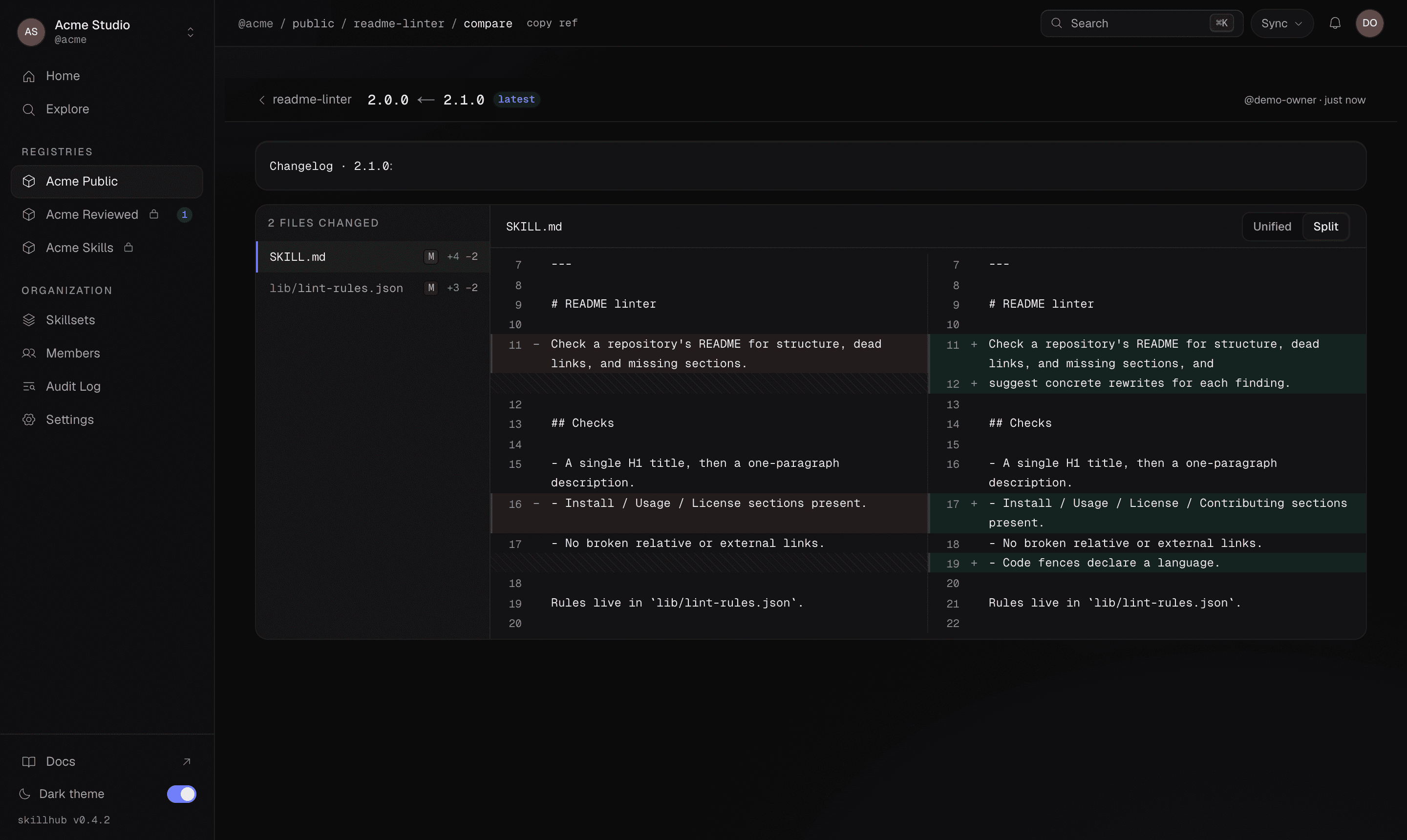
The diff is server-computed from the two immutable snapshots — the same bytes the registry hashed on publish, never a live re-render. That's what makes it trustworthy for review: two versions can only differ where their stored content differs.
Track your installs from the CLI
The dashboard shows a skill's published history. The CLI shows where your installs sit against it — and lets you move between versions deliberately. Three read-only commands map the terrain before you change anything.
See what you have installed
skillhub list (alias ls) is offline and read-only: it reports each installed
skill in the current scope with its resolved version, its source, the agents it's
fanned out to, and a drift status. Add --global (-g) to read the
machine-global scope instead.
skillhub listEach row prints name@version next to its full ref, so you can see exactly which
version a scope pulled in. A row can also carry flags — orphaned when nothing
subscribes to it anymore, or external / unreviewed when its bytes came from an
imported or externally-installed copy rather than a registry.
See what's newer upstream
skillhub outdated compares each installed skill against the registry without
changing anything — having updates available is information, not an error, so
it never fails a build. For every skill it reports three numbers:
- current — the version you have installed now.
- wanted — the latest version within the range or tag policy you declared.
- latest — the latest published version overall, ignoring your range.
skillhub outdatedThe human table only lists rows that need attention, and annotates the special
cases: a pinned skill (which won't move on its own), a version that's now
beyond range (a newer latest exists past your declared range), a
deprecated skill, a yanked current version, or one whose ref was
renamed upstream. The machine shape is exact:
{
  "ok": true,
  "data": {
    "scope": "project",
    "skills": [
      {
        "ref": "@studio/design-systems/tokens-workflow",
        "name": "tokens-workflow",
        "current": "1.0.0",
        "wanted": "1.2.0",
        "latest": "2.0.0",
        "pinned": null,
        "deprecated": null,
        "renamedTo": null,
        "yanked": false,
        "upToDate": false
      }
    ]
  }
}
Here wanted (1.2.0) is the newest release your declared range allows, while
latest (2.0.0) is a newer major sitting beyond that range — moving to it is
an explicit choice, covered next.
Move between versions
There are two ways to change which version a scope resolves, and they answer two different questions.
skillhub update with no arguments re-resolves every subscription and applies
whatever moved within its declared range or tag policy. This is the
"catch up on what I already allowed" move — it takes each skill to its wanted
version and no further.
skillhub updatePreview it first with --dry-run — it prints the same plan (↑ name old → new)
without touching the store or the lockfile:
skillhub update --dry-runTwo guarantees worth knowing: skillhub update never removes a skill (a
skill the resolved set no longer contains is kept and reported as orphaned —
pruning is sync --prune's job), and a pinned skill never moves without
an explicit new pin. Naming a pinned skill without a spec just reports that its
pin held.
To go past your declared range — to reach that latest that outdated flagged
as beyond range, or to lock onto an exact version — name the skill with a spec.
skillhub update widens the subscription explicitly first, then reconciles:
skillhub update tokens-workflow@^2.0.0An exact spec pins the skill to that one version — pinned skills then stay put
on later plain update runs until you re-pin them:
skillhub update tokens-workflow@2.0.0A range or tag spec replaces the declared range (or, for a registry-covered member, adds an explicit per-skill subscription that outranks the registry expansion), so you can also switch channels — for example onto a prerelease:
skillhub update tokens-workflow@betaNaming a skill scopes the widening, not the reconcile: because the engine
converges the whole scope, an update name@spec run may still apply in-range
moves to other skills at the same time.
You can reach the same version choices at first install with skillhub install:
skillhub install <ref>@1.2.0 --pin pins to an exact version, and
skillhub install <ref> --tag <range|tag> sets the range or channel when the ref
has no version qualifier. skillhub update is for moving something you already
have; skillhub install is for adding it. See the
install reference for every flag.
Move a dist-tag (maintainers)
Everything above reads or resolves versions. If you maintain the skill, you can
also move the pointers themselves. skillhub tag slides a dist-tag onto an exact
published version — the same promotion the dashboard performs when it lands a
release tag:
skillhub tag @studio/design-systems/tokens-workflow@2.0.0 latestThe move is enforced server-side: a release-only tag is refused on a prerelease version, and on a review-required registry only an admin can land the release tag. The result echoes what the tag pointed at before, so a move is never silent:
{
  "ok": true,
  "data": {
    "ref": "@studio/design-systems/tokens-workflow@2.0.0",
    "tag": "latest",
    "version": "2.0.0",
    "previousVersion": "1.2.0"
  }
}
After the move, the Versions tab shows latest pinned to its new row — the
timeline and the tag pointers stay in lockstep with what the CLI just did.
Where to go next
Skills & versions
Immutable content-hashed versions, mutable dist-tags, and the deprecate/yank/unpublish lifecycle.
Versions & dist-tags
How ranges and channels resolve, and setting versions and tags at publish time.
outdated reference
Every column of the update report and its full --json payload.
update reference
Moving within a range, widening, pinning, and the pinned-held guarantee.